
GreenPT setup in JetBrains IntelliJ
- Posted on: July 13, 2026
So, here's my predicament: My work requires us to use IntelliJ. And an AI assistant. But I try to be as enviromentally conscious as possible and so I have a hard time using Agents when I think of that aspect of their impact. But recently I was talking to my friend Martina (a frequent contributor of Agilists4Planet and my favourite source for sustainability tips) and she showed me there's a way to have GreenAI. That's GreenPT. I've managed to set it up so I can use both the "AI Chat" and the "Agent" (aka: Junie) functions.
Here's how you can do the same for yourself.
Part 1: the GreenPT stuff
Firstly create an account with GreenPT
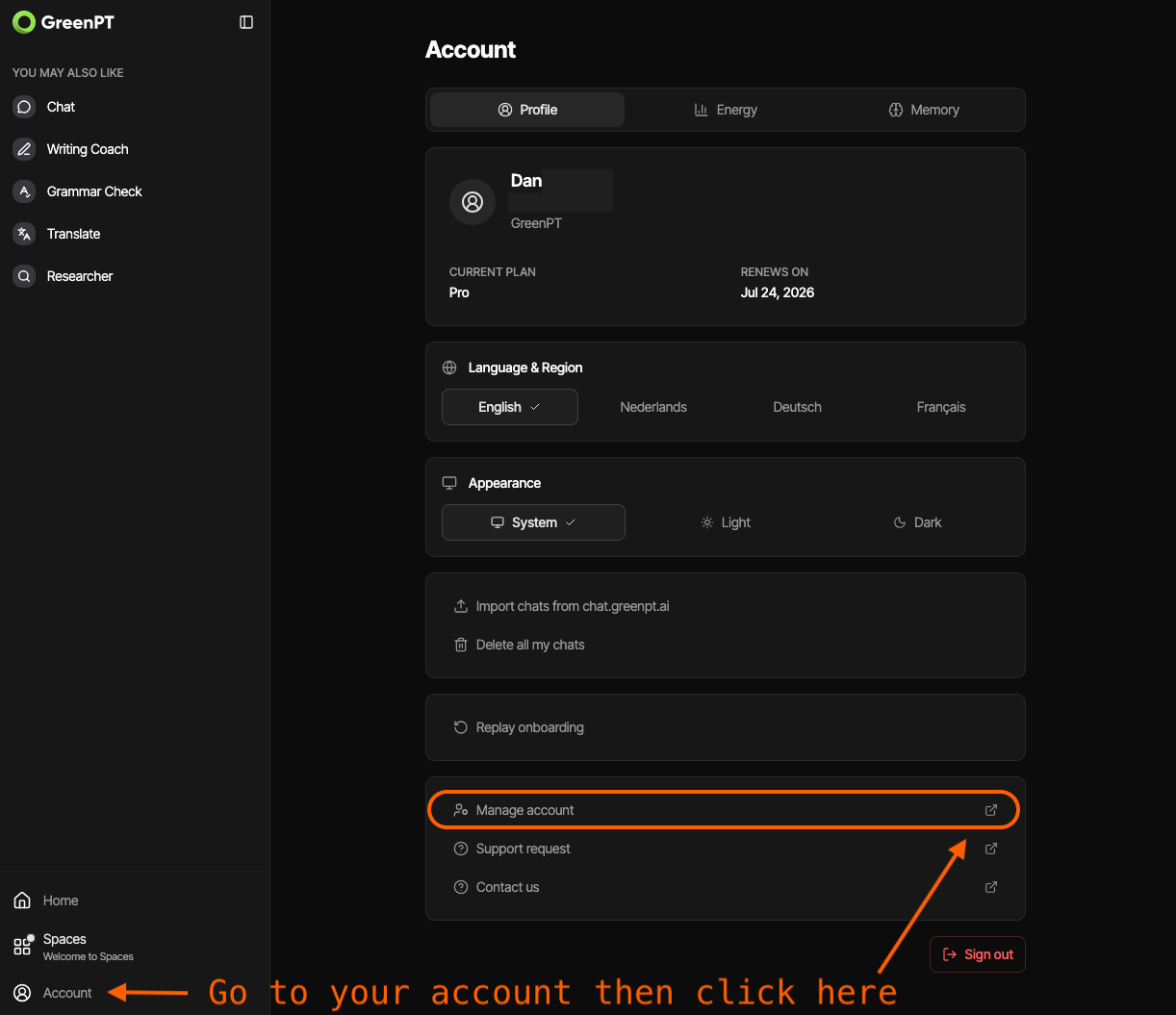
Then go to your Account page and under "Manage Account"
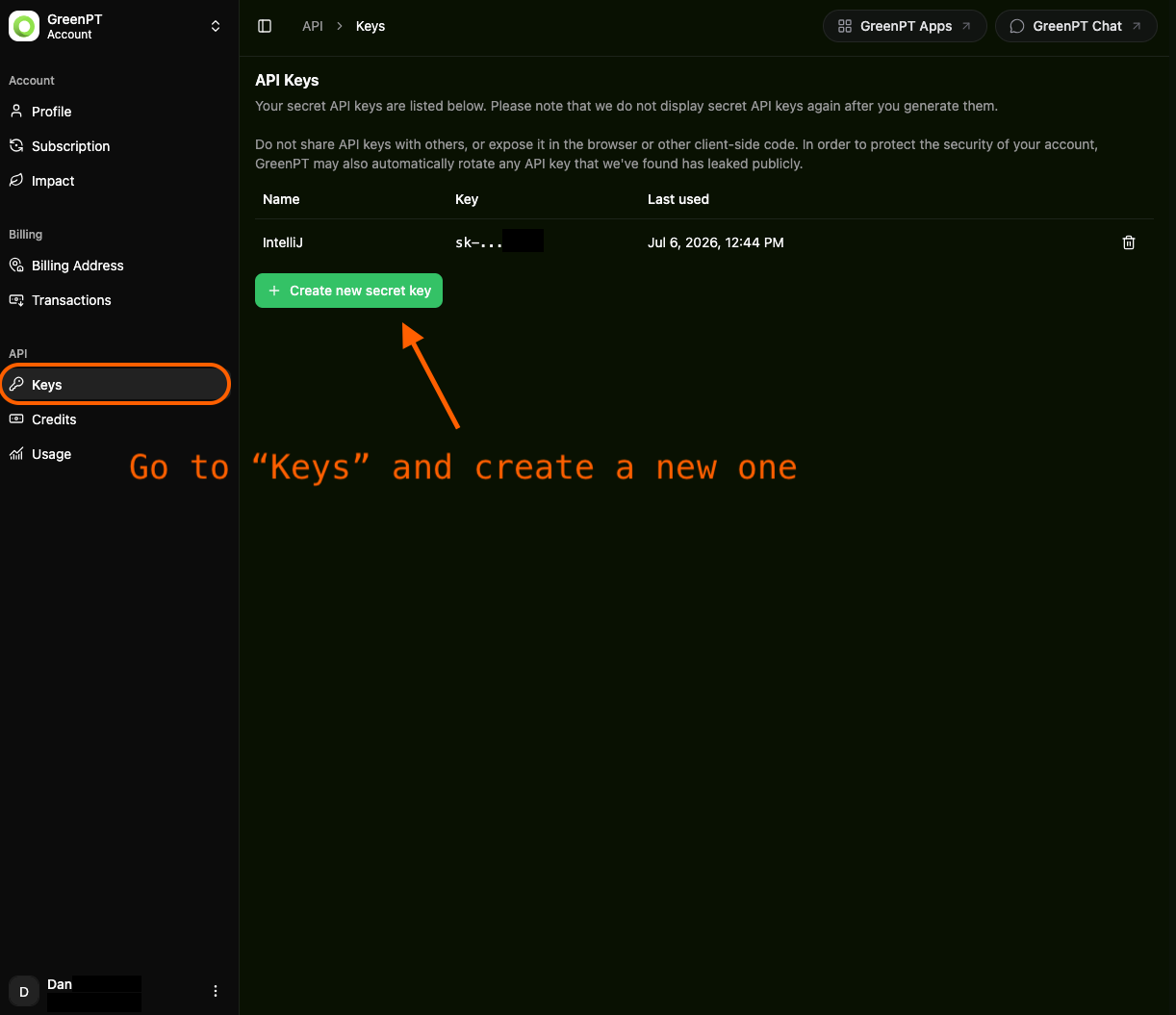
click "Keys" to find the button to generate a new key. MAKE SURE TO SAVE IT, since you won't be shown your key again.
Part 2: the shell stuff
Now with your key, add the following to your shell (I recommend pasting this in your .zshrc or .bashrc file)
export GREENPT_API_KEY="sk-your_key_value_here"You can check if that worked by closing your terminal app, then reopening it and typing:
echo $GREENPT_API_KEYIf you see that sk-... value, then you're good.
Cool. With that done, we can go to IntelliJ.
Part 3: the IntelliJ stuff
FYI: I'm assuming IntelliJ has been closed until now. If you had it in the background, please restart it before continuing with this tutorial so your terminal sessions are fresh and have the variable from Part 2 already loaded.
Personally I like to put my files in place before I set up the GUI, but you could do the other way around if you prefer.
the files
Open IntelliJ on the project you want to use GreenPT with and create the following files at the root of your project
.opencode/
|    opencode.json
|    skills/
|    |    honey/
|    |    |    SKILL.md
I like to use Devstral (Go Europe! 🇪🇺), so I populate my opencode.json file with the following content (from their docs):
{
  "$schema": "https://opencode.ai/config.json",
  "provider": {
    "greenpt": {
      "npm": "@ai-sdk/openai-compatible",
      "name": "GreenPT API",
      "options": {
        "baseURL": "https://api.greenpt.ai/v1",
        "apiKey": "{env:GREENPT_API_KEY}"
      },
      "models": {
        "devstral-2-123b-instruct-2512": {
          "id": "devstral-2-123b-instruct-2512",
          "name": "Devstral 2 123B",
          "tool_call": false,
          "limit": {
            "context": 100000,
            "output": 4096
          }
        }
      }
    }
  },
  "model": "greenpt/devstral-2-123b-instruct-2512"
}
Next Honey. But – I hear some of you ask – wtf is that? Well, Honey is a GreenPT skill that lowers your AI costs by optimising token usage. To activate that I need to populate the SKILL.md with the contents of this file on their git repo.
That being done, we can move on to...
the GUI
Chat
Open the Settings
Go to
Tools>AI Assistant>Providers & API keysUnder
Third-party AI providersset "Provider" to "OpenAI-compatible"The
URLshould be "https://api.greenpt.ai/v1" (as per their docs)The API Key is the one you got in Part 1 (step 3)
Use the
Test Connectionbutton to verify. If all is well, clickOKto save and exit the Settings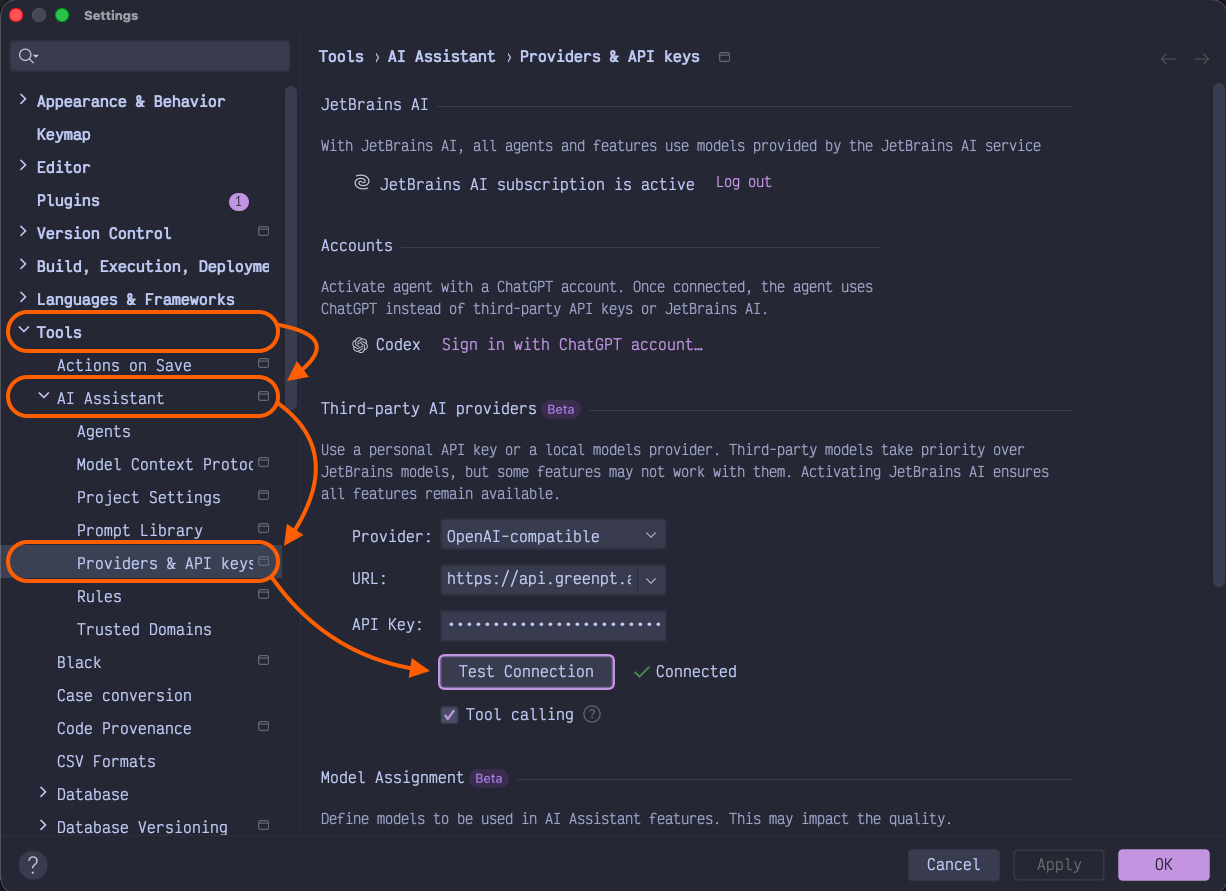
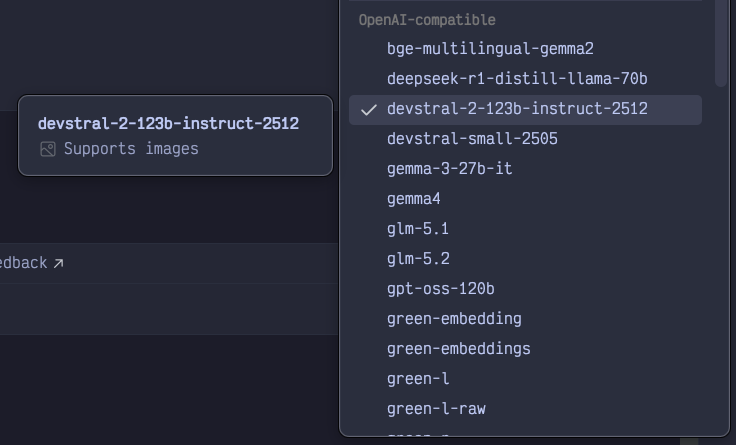
You might have to restart the IDE for changes to apply. This should have added several new models. I highly recommend the
devstrall-2you can see in the screenshot.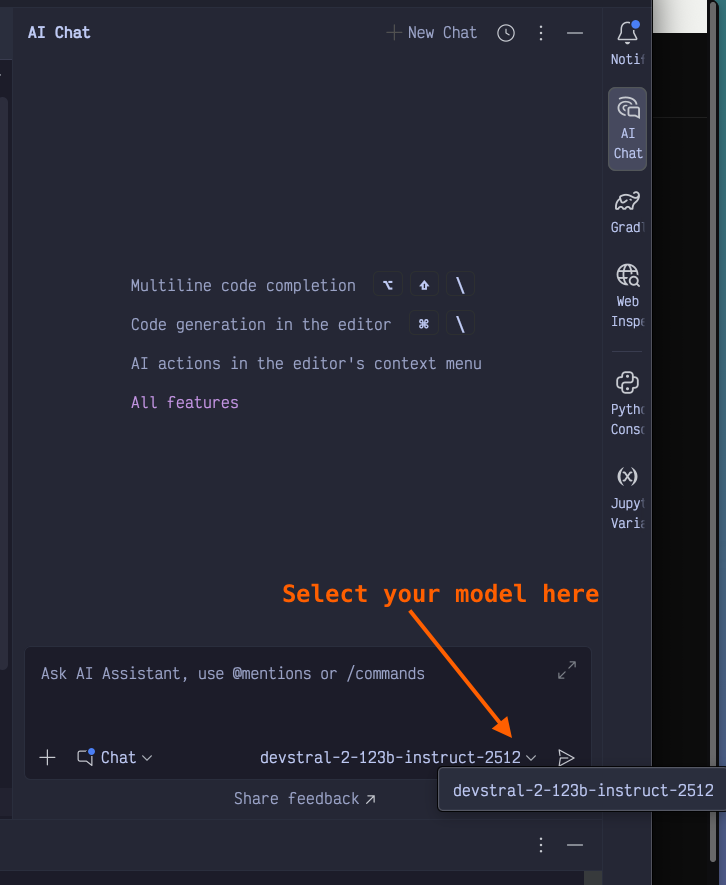
Agent
On IntelliJ's AI Chat tab, click on the dropdown below the input field and select
+ Install From ACP Registry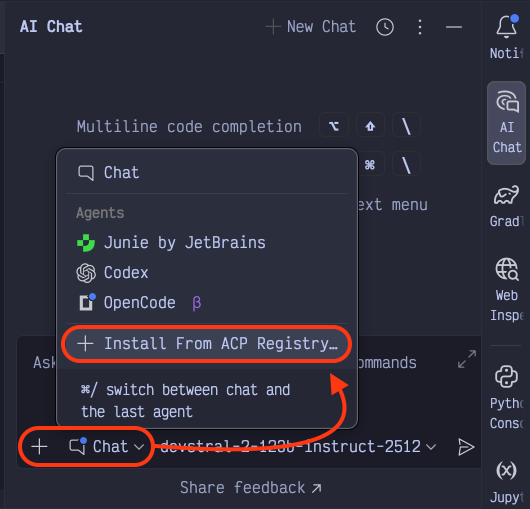
Find the OpenCode entry and click on the install button beside it.
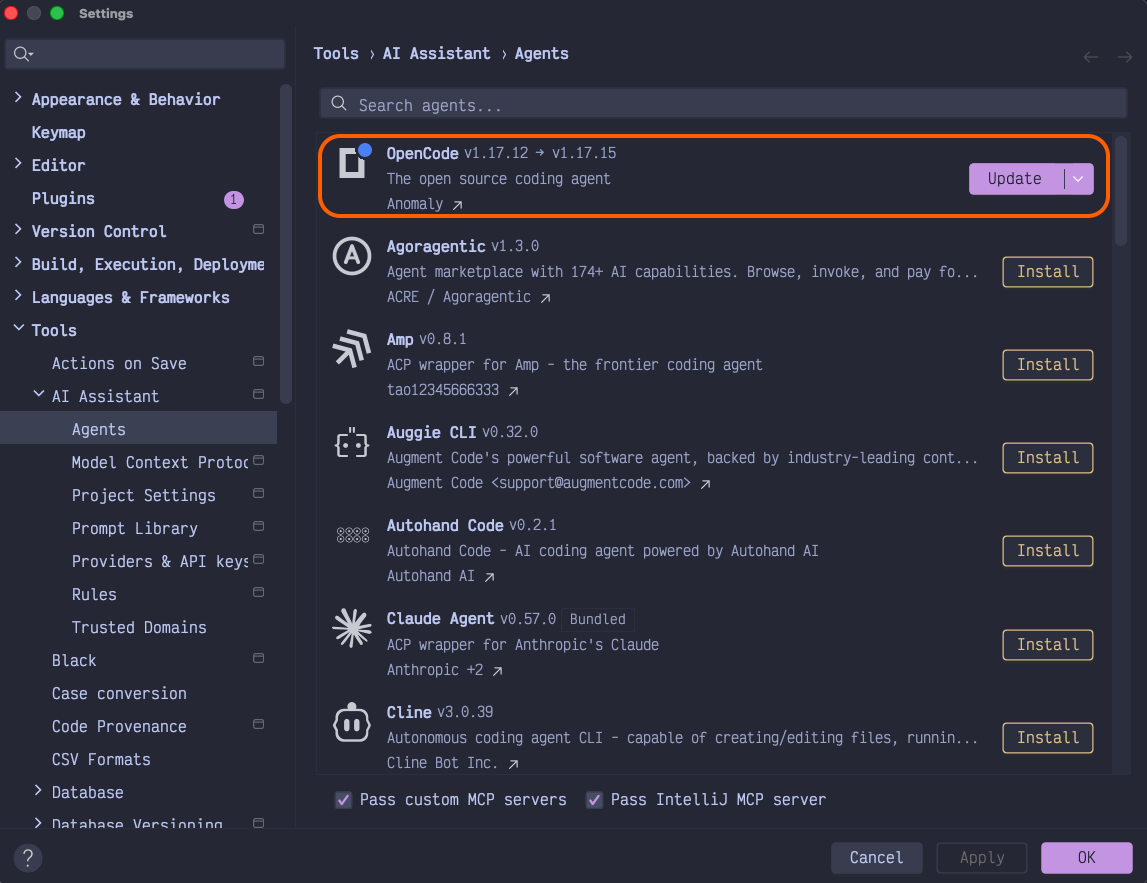
Once installed, restart your IDE. When you use the OpenCode (instead of the Chat window in the dropdown from step 1), it'll pick up the config files we've setup automatically.
ENJOY GREEN AI!
The planet is grateful.